Social Logins
You can enable login via Google, Facebook, LinkedIn, and Twitter to make it easier for users to sign in.
Google Login
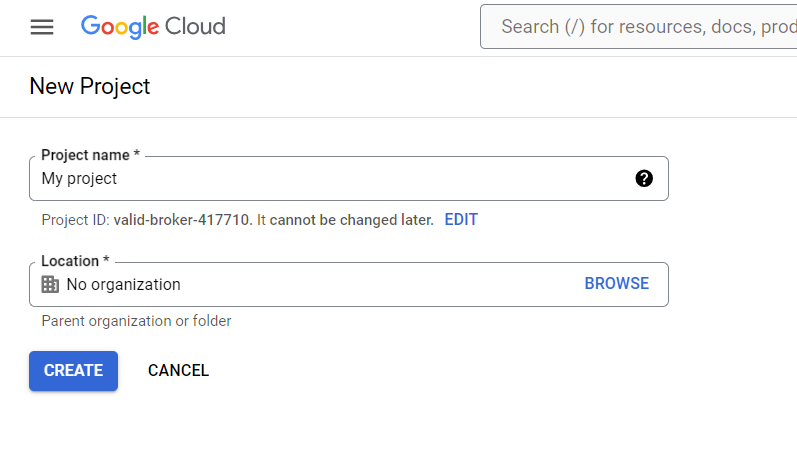
- Navigate to Google Cloud Console and create a new project.
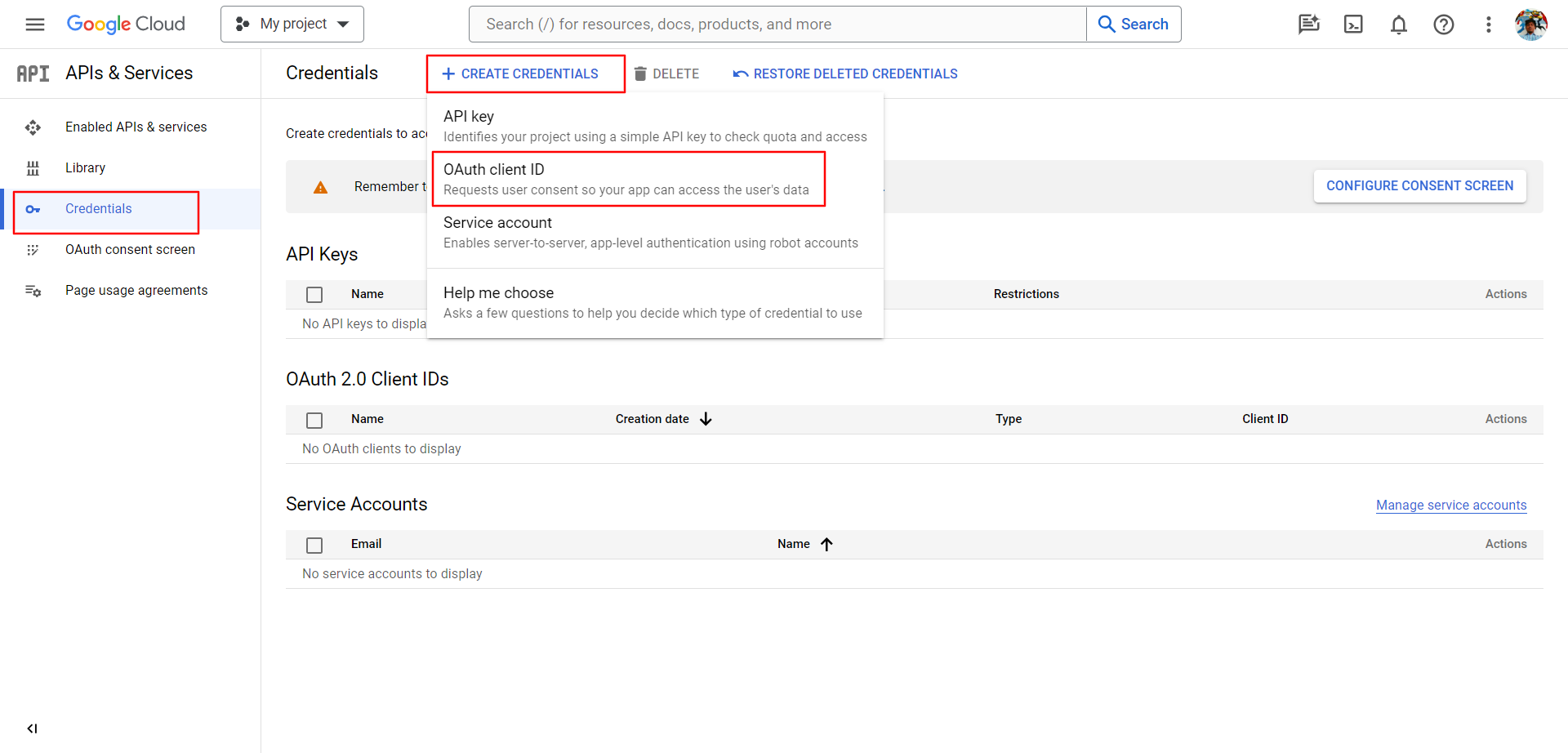
- Go to Credentials and create an OAuth Client ID.
- Click Configure Consent Screen, select External, and complete the required information.
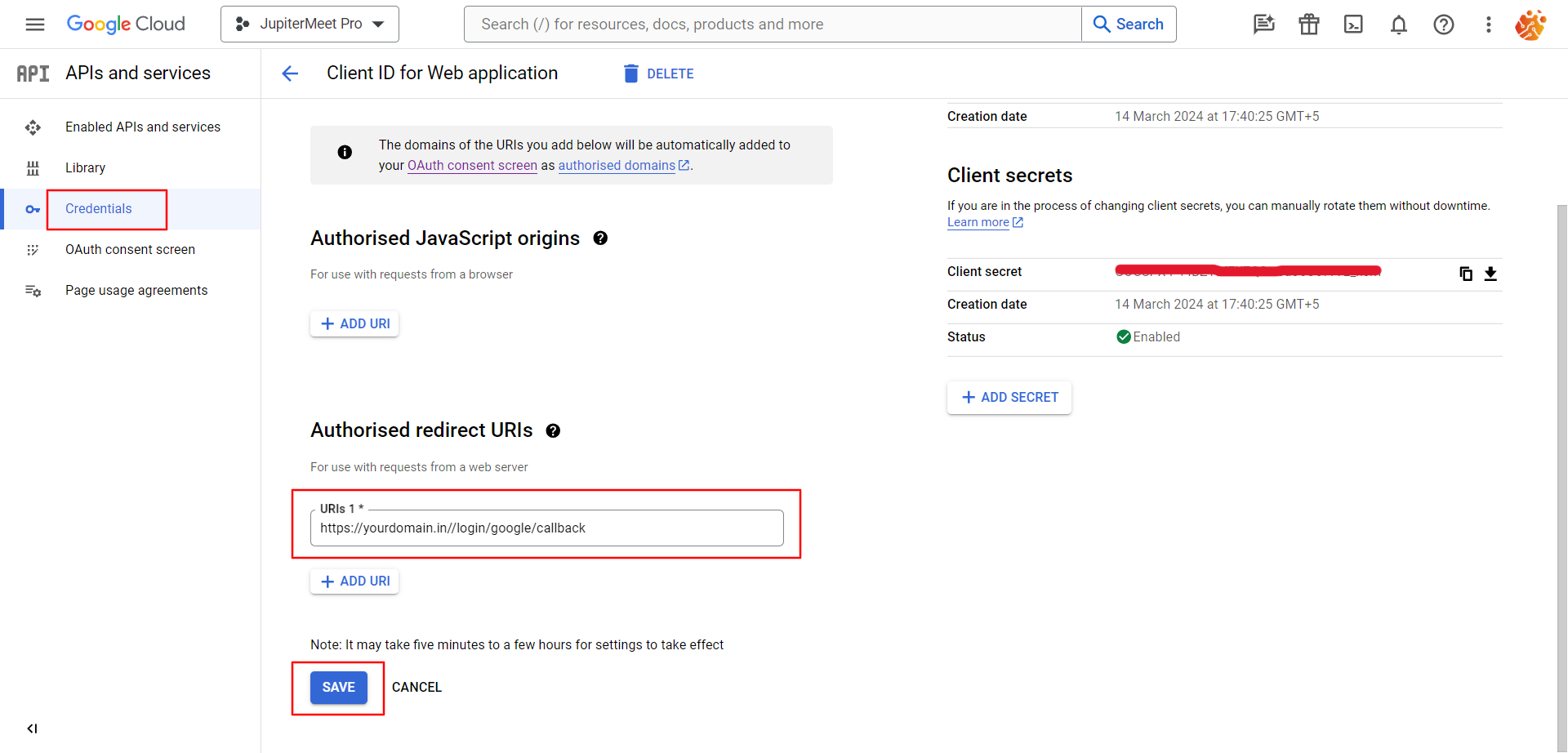
- In the Authorized redirect URIs, paste the Callback URL found in the global config section.
- Click Save.
Facebook Login
- Navigate to Facebook Developers and click Create App.
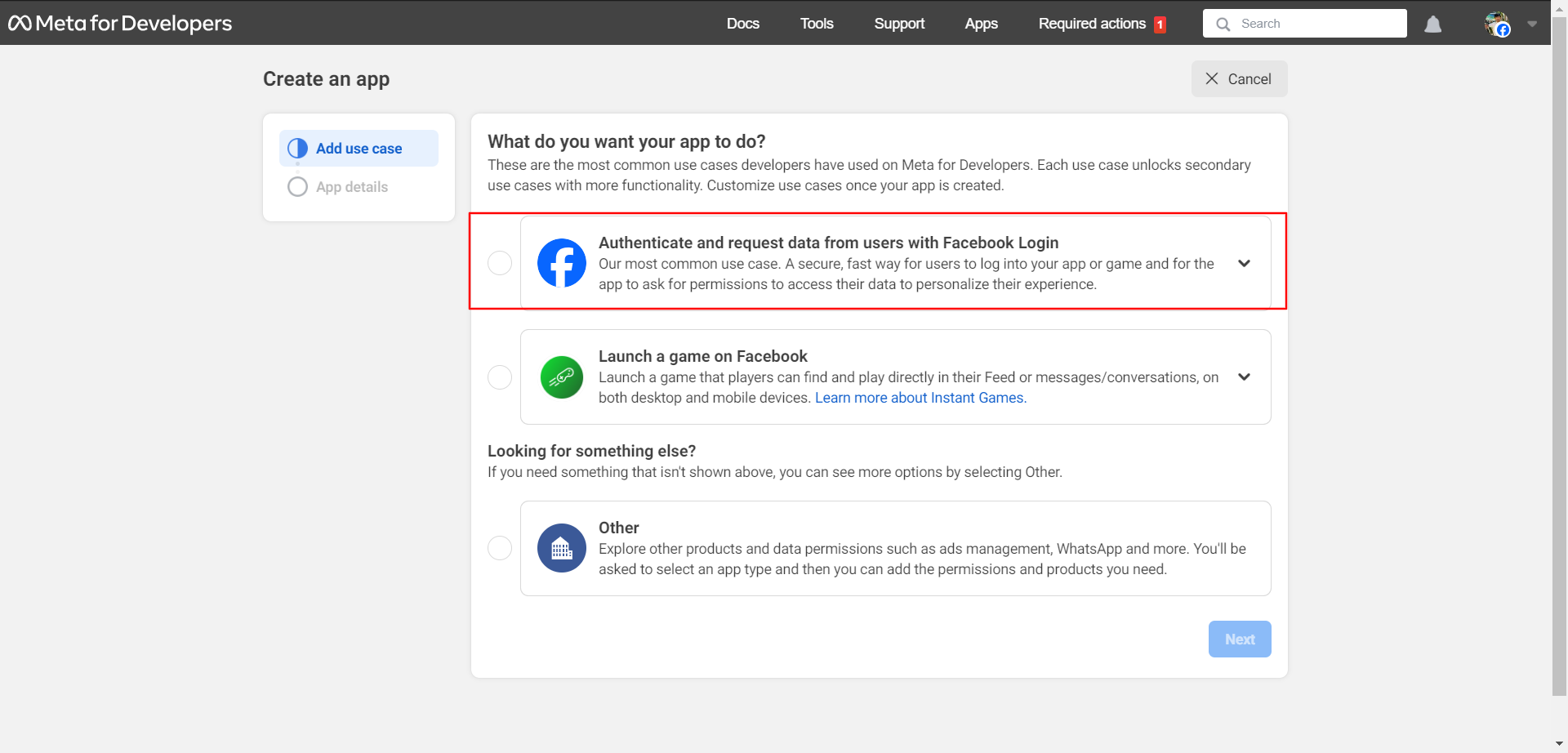
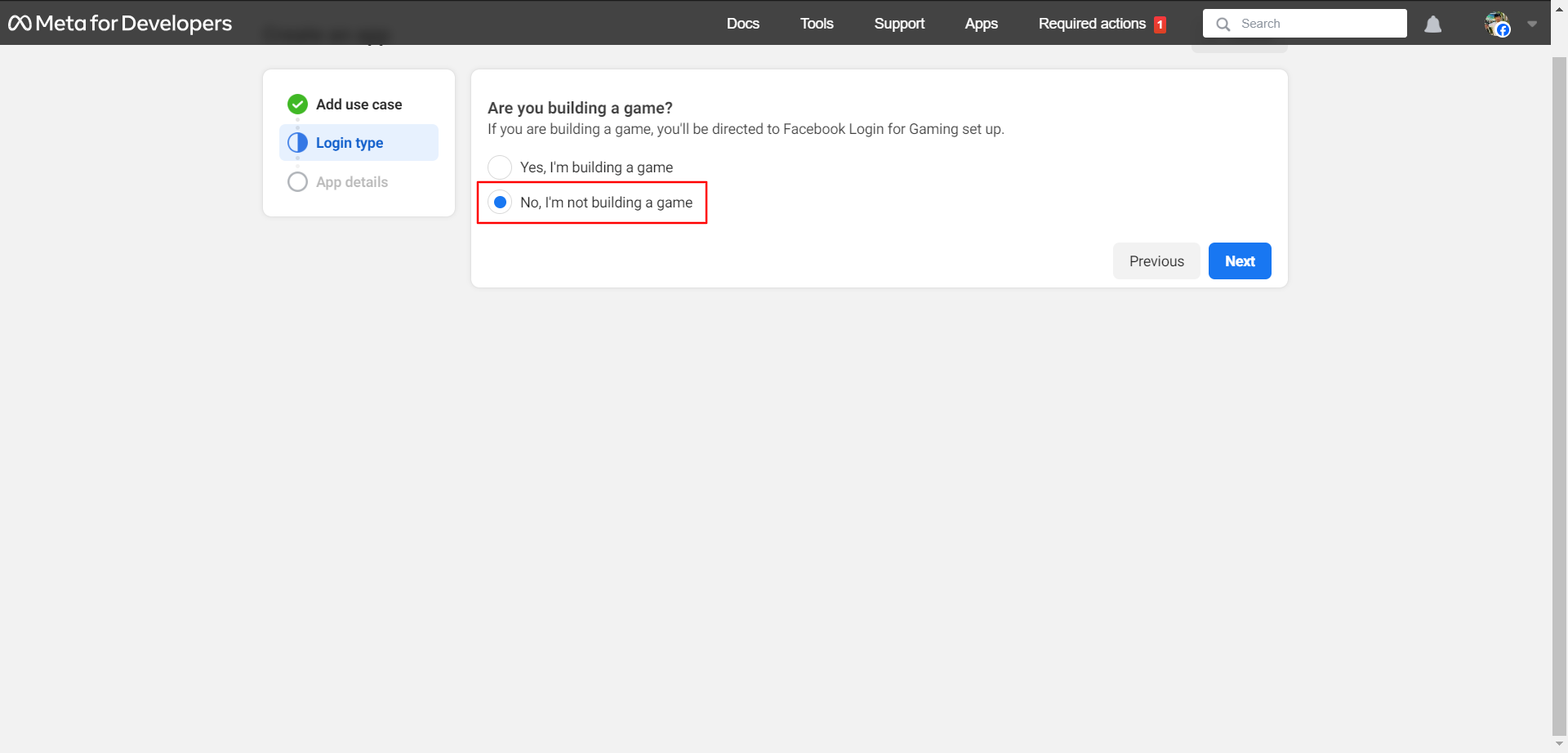
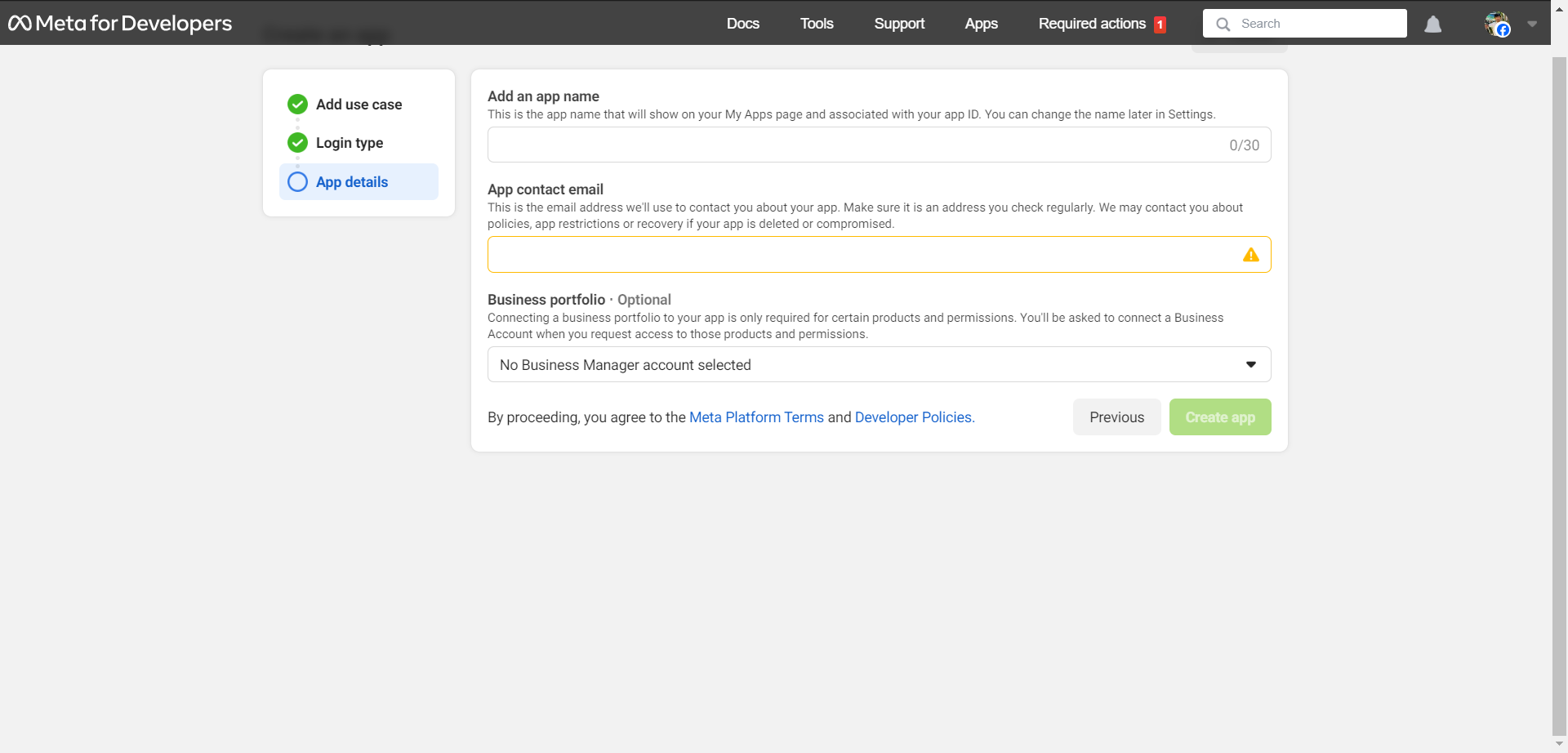
- Fill out the required form and click Create App.
- Copy the App ID and App Secret from the Basic section and paste them in the global config section.

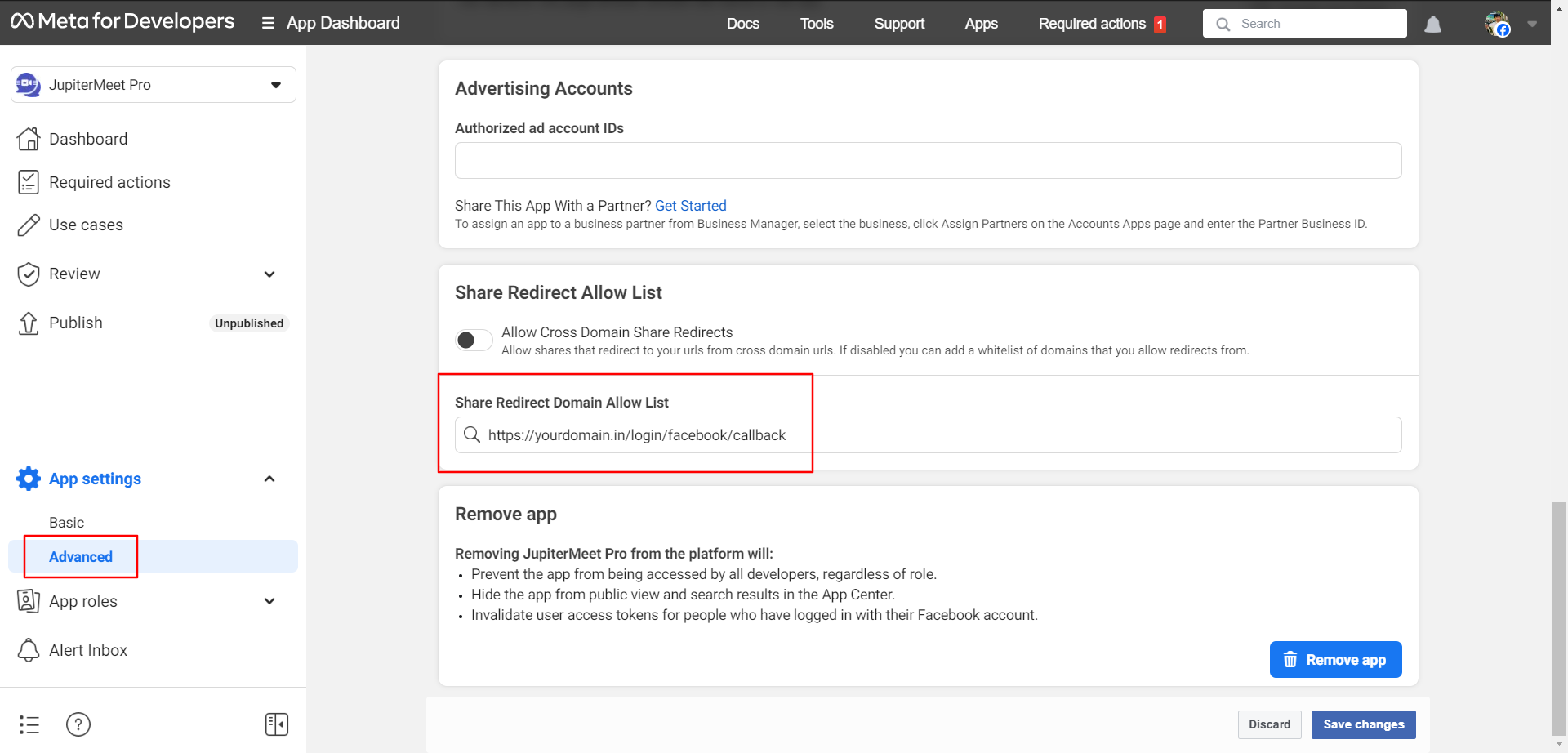
- Copy the Callback URL from global config and paste it in the Facebook redirect section, then save.
LinkedIn Login
- Navigate to LinkedIn Developers and click Create App.
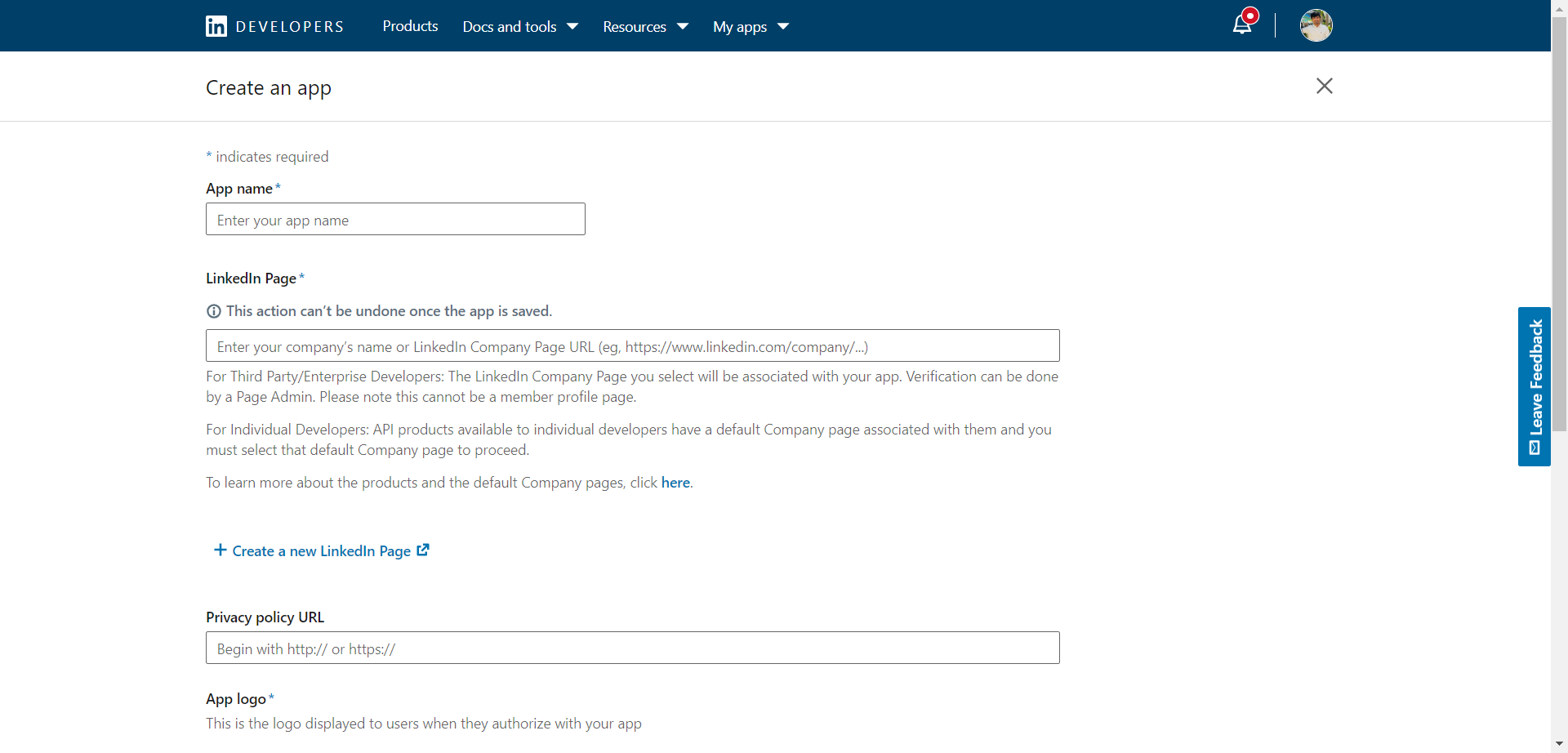
- Fill in the required details and choose Sign in with LinkedIn.
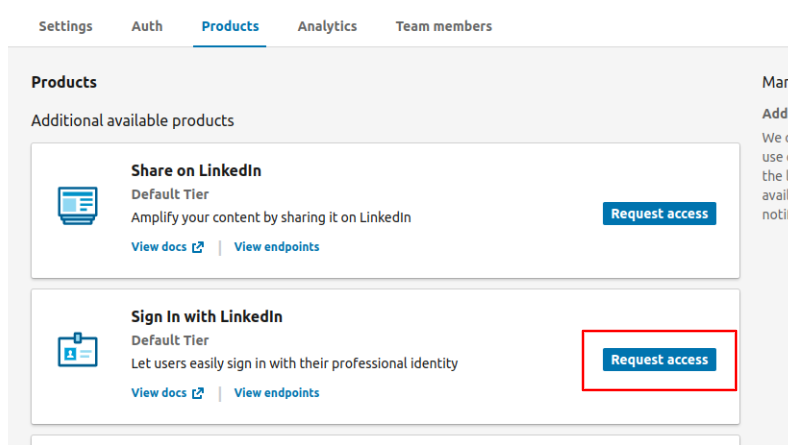
-
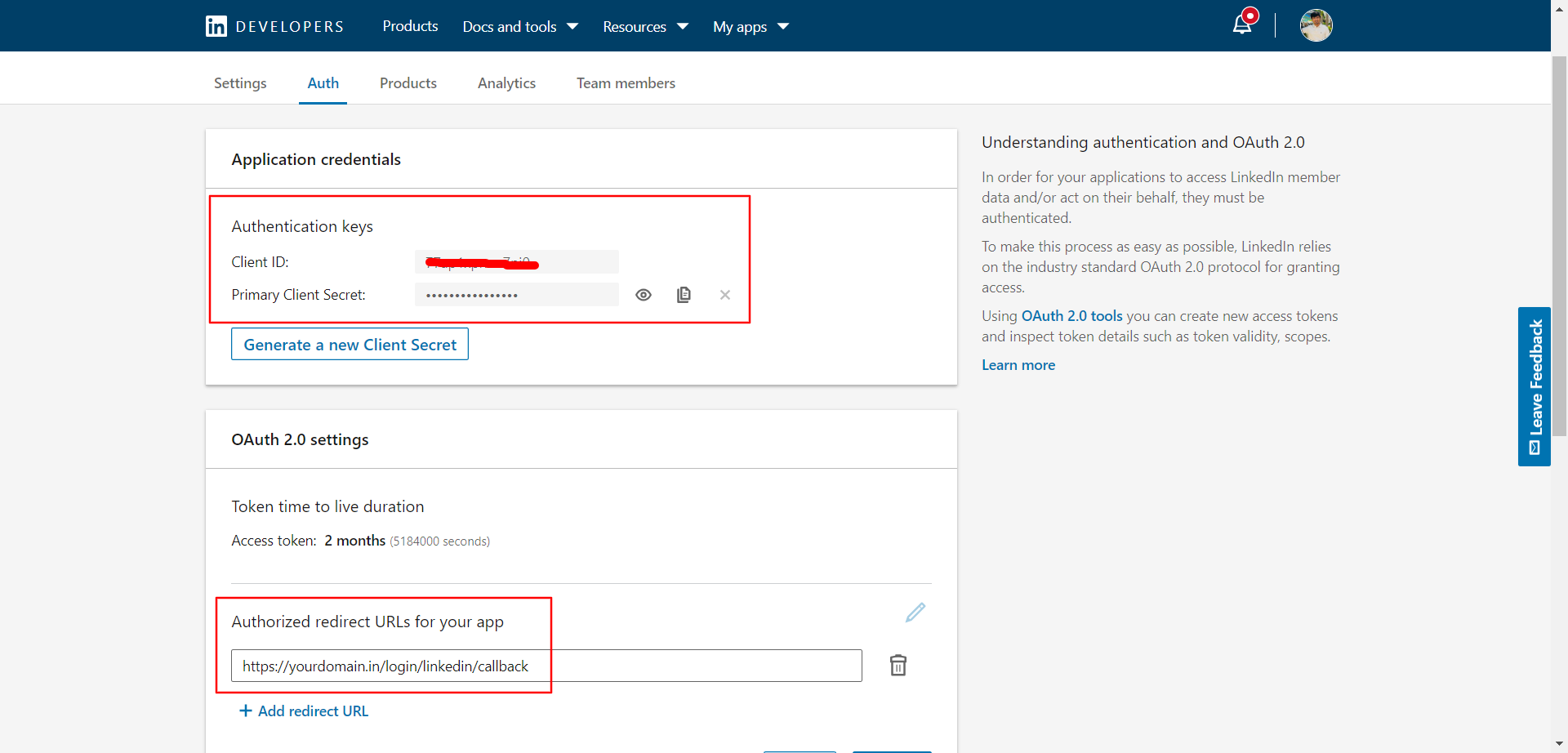
Go to the Auth section, copy the Client ID and Secret, and paste them into the global config.
-
Add your Redirect URL in LinkedIn settings as shown.
Twitter Login
- Go to Twitter Developer Portal and click Add project.
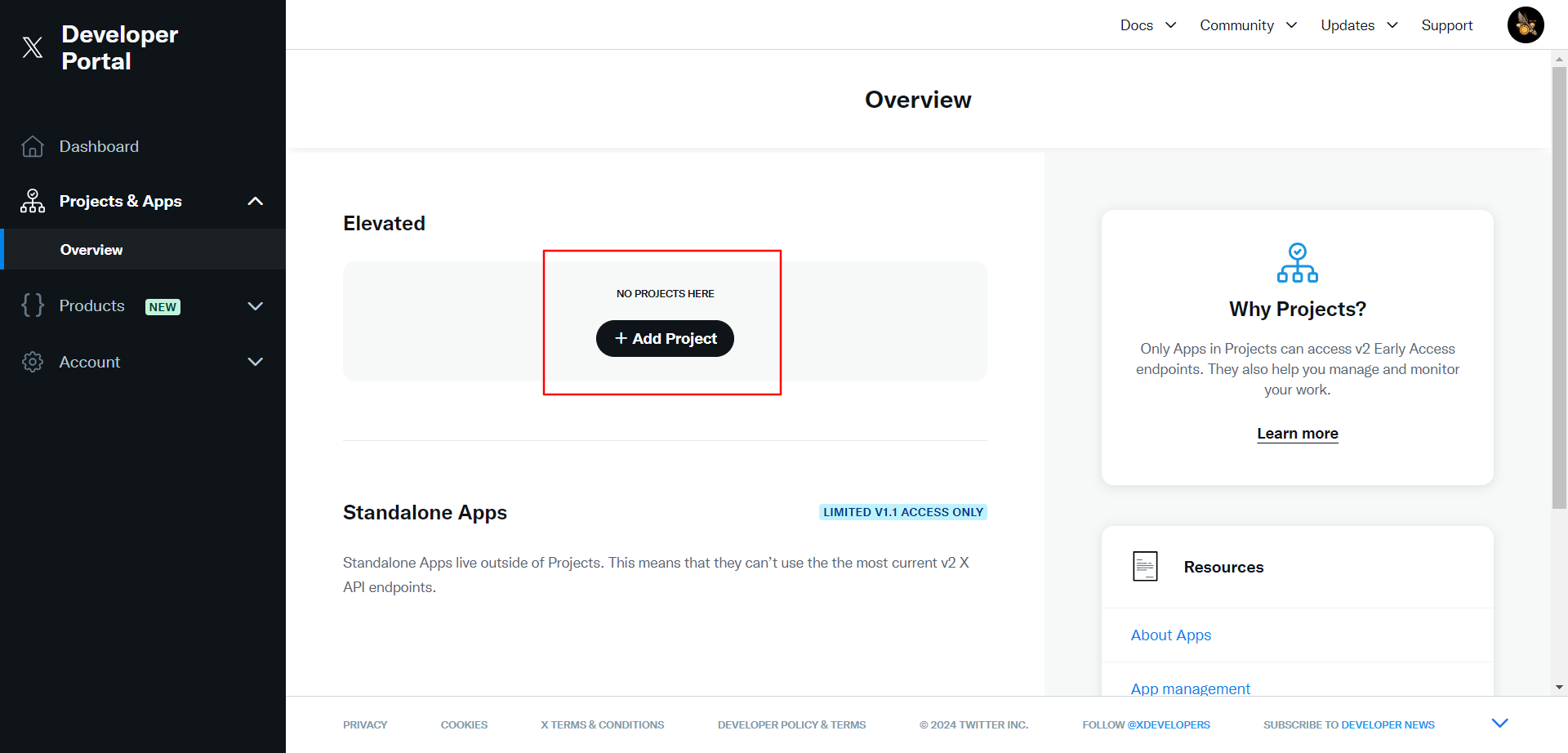
- Fill in the required details.
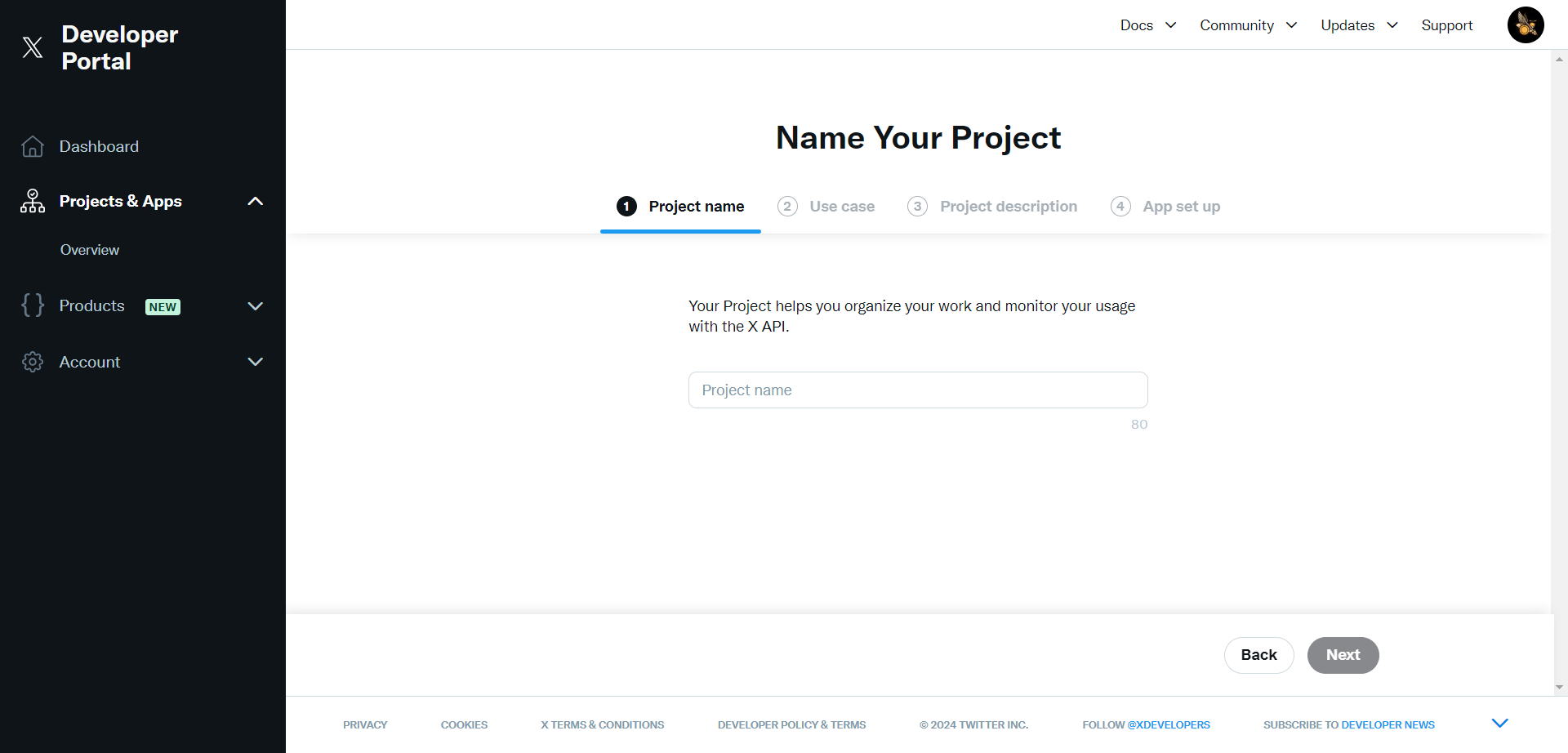
-
Copy the API Key and Secret and paste them into the global config section.
-
Click Set up.
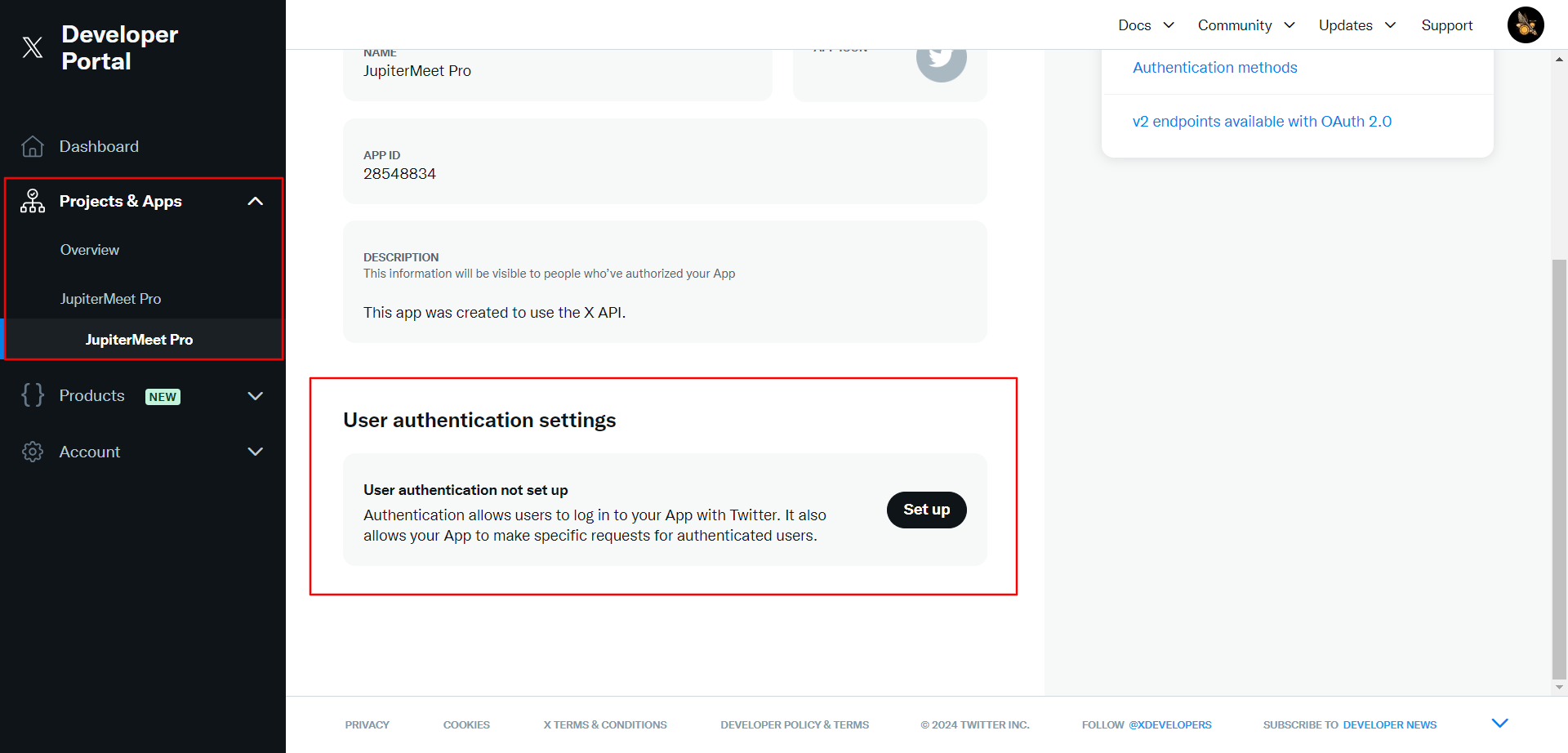
-
On the next screen:
- Set App permissions to Read.
- Choose Type of App as Web App.
- Paste the Callback URL in the App info section.
-
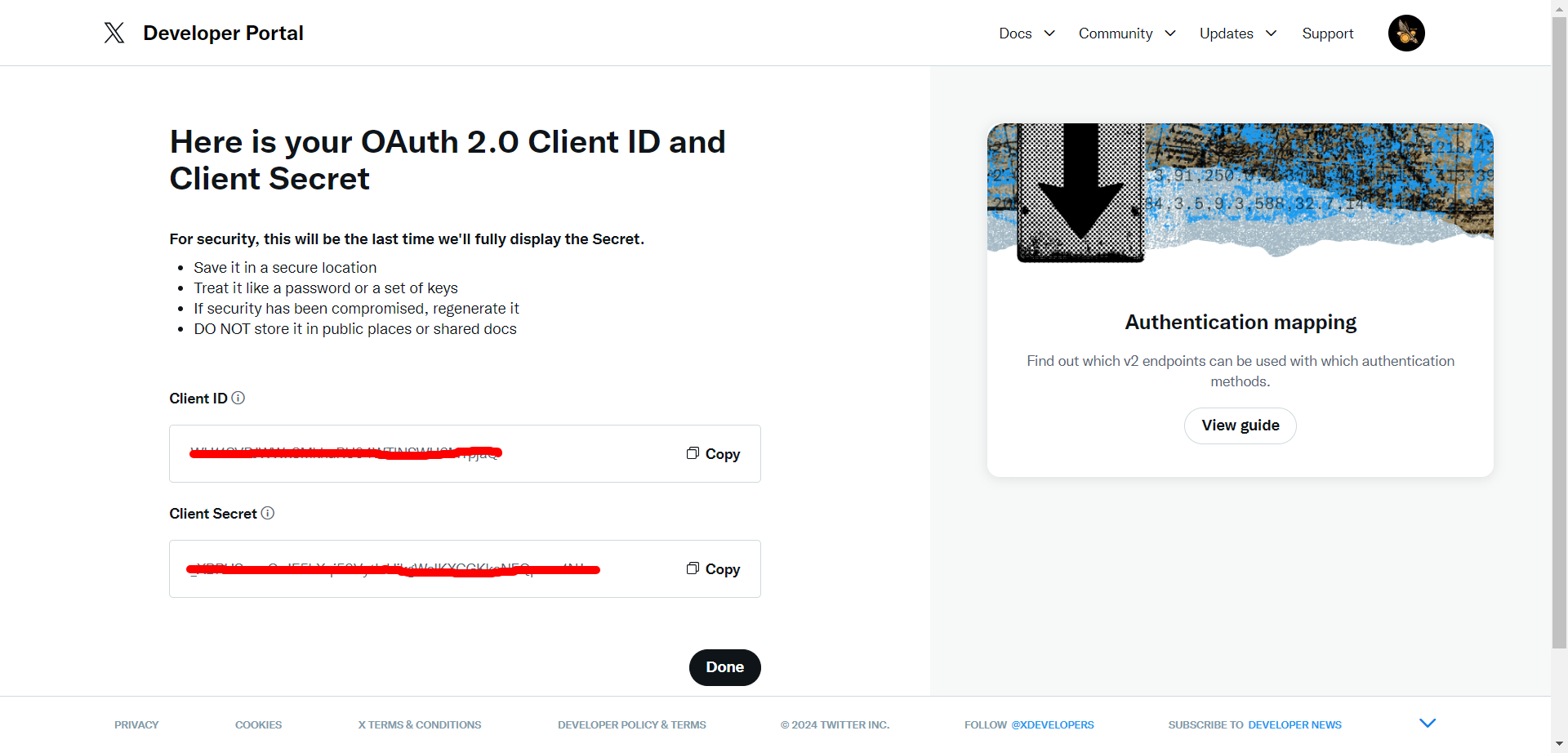
Copy the Client ID and Secret, and paste them into the global config section.